Two-factors authentication
The access to the database can (and should) be protected by a password defined for each user registered in the database. But as a password can leak, and additional security measure is to activate an additional authentication method.
You enable two-factors authentication by selecting Configure Users from the Maintenance menu and then clicking the Options button. You get the following dialog box:
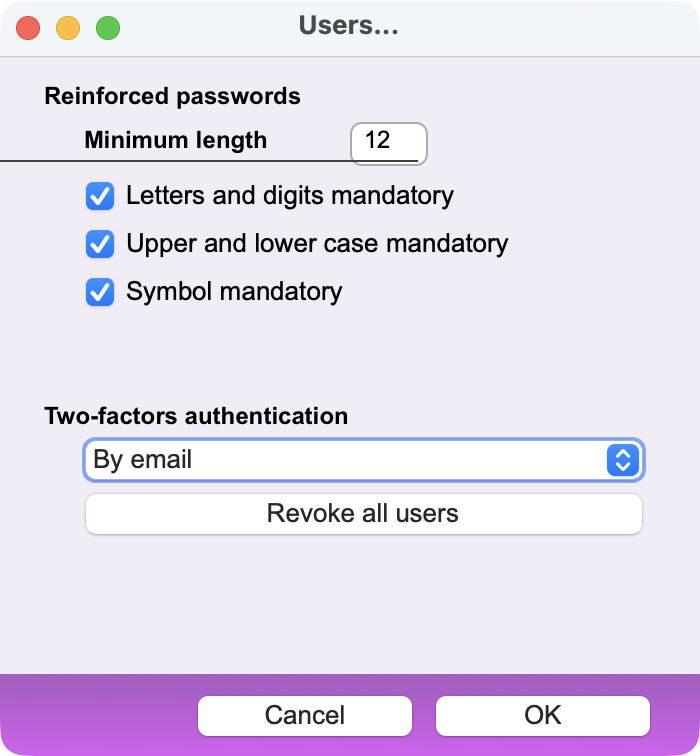
Two-factors authentication is not available in single-user version of the software.
Two-factor authentication means that, in addition to a password, the user must enter a time-limited code provided by the system. For greater security, the code is sent to a device other than the computer used to log in to Office Maker or BiblioMaker, based on the assumption that if the password is leaked, it is unlikely that an unauthorized user will have access to this second device.
Several methods are available:
By mobile application (TOTP)
With this method, a temporary code is provided by an independent application, usually installed on another device such as a smartphone or tablet. After entering their password, the users obtain the temporary code and enter it into the Office Maker or BiblioMaker software.
This method is implemented as follows:
In the Two-factor authentication pop-up menu, the administrator chooses the By mobile application (TOTP) method.
On a second device (e.g., a smartphone), the user installs a TOTP app such as Google Authenticator, Microsoft Authenticator, FreeOTP, etc. from the App Store (Apple) or Play Store (Android).
When the users connect to the data file for the first time after enabling two-factor authentication, they enter their password and the program displays a dialog box to set up the second authentication.
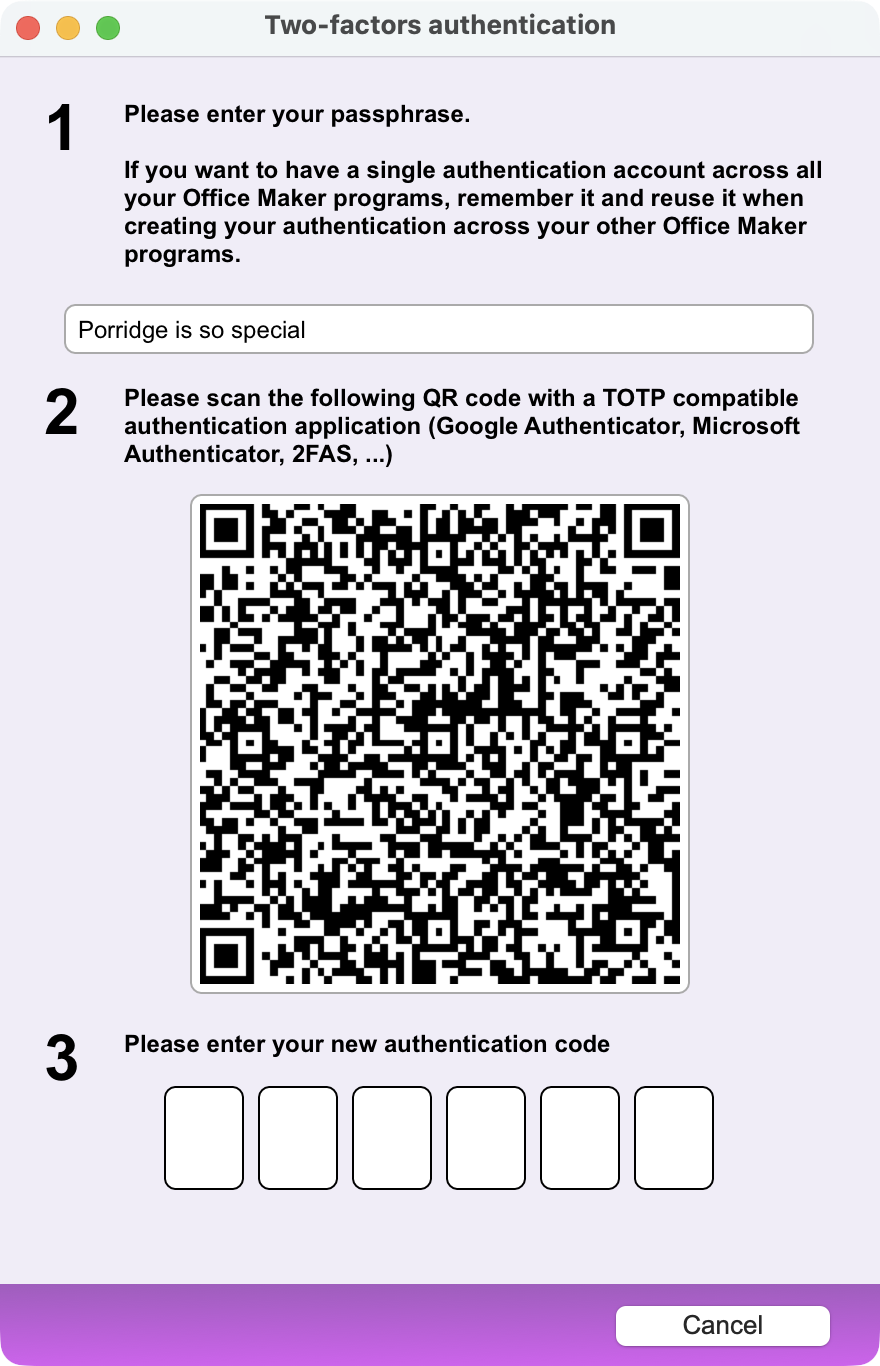
They will need to enter a secret phrase (such as “Porridge is so special”)*. A QR code is generated and displayed on the screen, which they must scan with their mobile device (smartphone or tablet) in the TOTP app, creating an entry in the TOTP app. From then on, the TOTP app will generate a code that renews every 30 seconds.
*If the user logs into multiple Office Maker programs, it will be easier to enter the same phrase in each program so that there is only one entry in the TOTP app.
By e-mail
With this method, when the users log into the database, they enter their usual password. They then confirm their identity by entering a 6-digit number that they have just received by email. This code is valid for a few minutes.
This method is implemented as follows:
In the Two-factor authentication pop-up menu, the administrator chooses the By e-mail method.
It is, of course, essential that the E-mail field for each user account has been filled in with an address that the user has access to.
 Français
 Deutsch
 Italiano