The Fill function in Spreadsheets
Spreadsheets can be used in the “traditional” way, just like any other spreadsheet program, to create tables containing calculation formulas. However, their main benefit lies in working with data extracted from the database. For example, in Business, a table could contain a list of customers along with the revenue they have generated, or a list of vendor invoices. In Finance, for example, you can retrieve a list of accounts and their opening balances or a selection of journal entries.
The advantage of this integration is that the spreadsheet updates automatically based on changes made to the data entered in the database. This allows you to create dashboards to monitor the progress of your business.
When you open the spreadsheets, most of the window is taken up by the data area. To the left of this area, click the Fill button to retrieve data from the database. The following dialog box appears to the right of the data area:
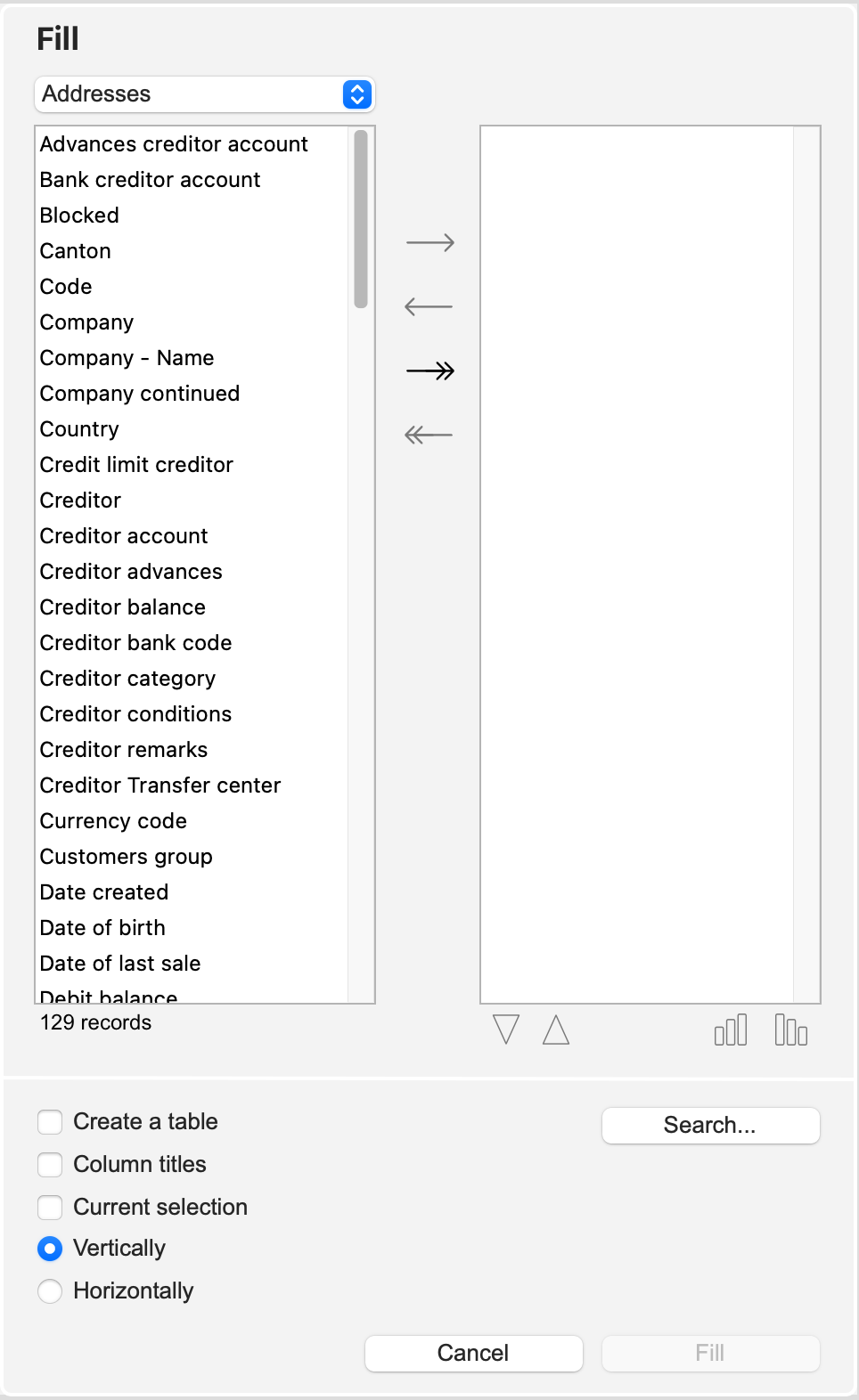
This dialog box contains the following items:
- At the top left, there is a list of fields to select. Use the drop-down menu above this area to choose the desired file, which updates the area with the corresponding fields. A table can only contain fields from the same file. Below this area, the program indicates how many records will be displayed in the table.
- At the top right, an area displaying the selected fields. Use the arrow buttons located between the two areas to add or remove fields.
- Below this area, two sets of two buttons for changing the order of the fields (and thus the columns in the table) and for defining a sort order.
- Create a Table checkbox: Check this box if you want to create a dynamically managed table (the spreadsheet will save the search formula to create the desired record selection as well as the table’s column layout). If you do not check this box, the data will be retrieved and can be modified, but you will not be able to change the lookup formula or the columns to display.
- Search button: displays the search formula editor. If you check the Cell Name checkbox, a list of all named cells will be displayed.
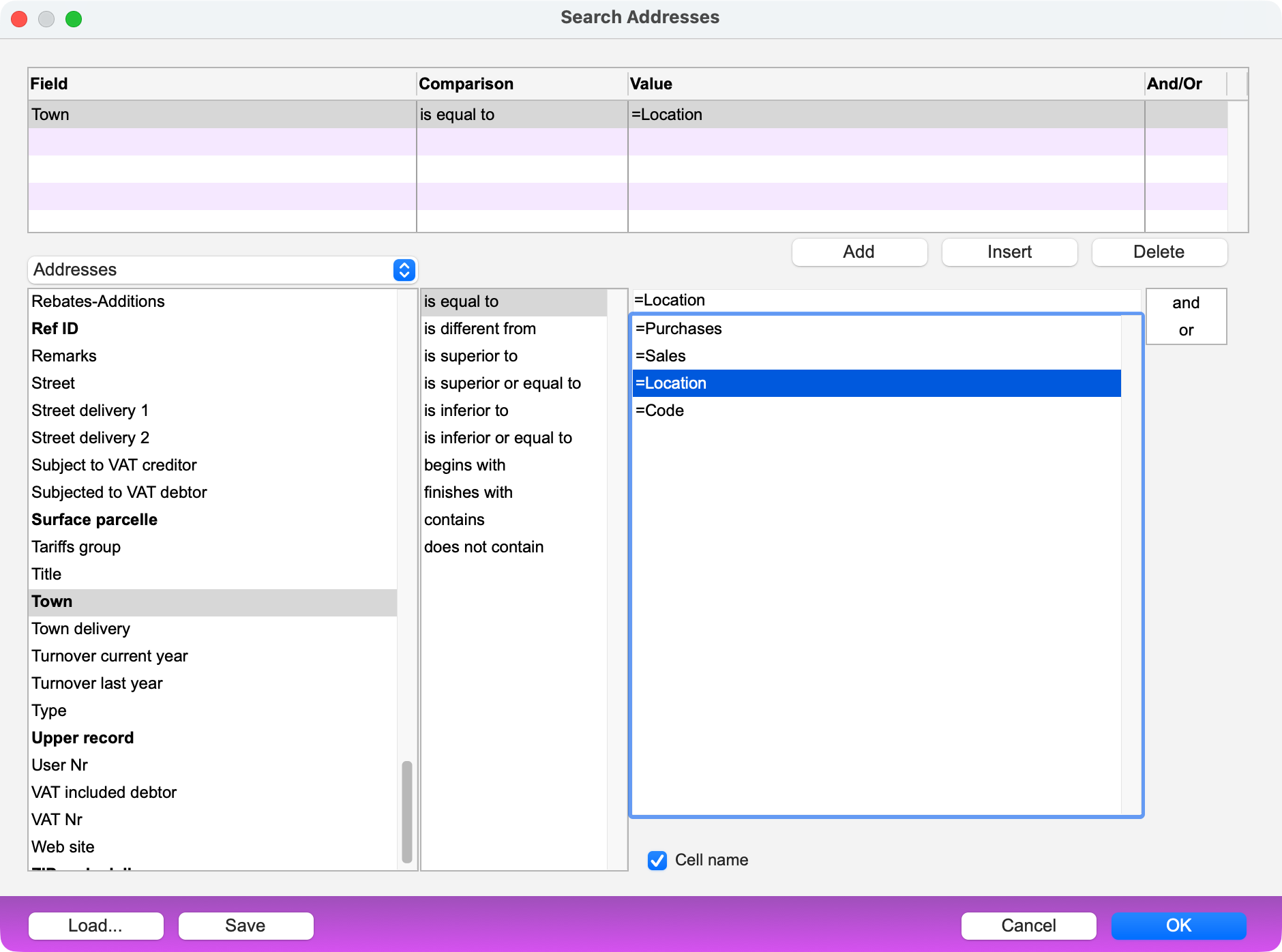
This allows you to set up a dynamic search: certain cells may contain a value to be used in the search. So, if you change the value in those cells, the search formula updates automatically, causing the data table to refresh. This approach is more flexible than using a standard search formula, which you would have to modify if you wanted to search for different data.
- Column Title checkbox: Select this checkbox to have the columns containing the inserted data preceded by a header.
- Current Selection checkbox: Select this checkbox if you want the current selection of records in the selected file to be taken into account. If you have defined a search formula, it will take the current selection into account.
- Vertically and Horizontally radio buttons: Choose how the table should be filled. The Horizontally option can only be selected if a single field has been selected.
Click the Fill button to confirm this dialog. If the Create a table checkbox is selected, the data will be displayed in a new tab.
In the left sidebar, click the Rolled-up arrow button to the right of the Fill button to update the selected table or, if none is selected, all tables on the sheet.
 Français
 Deutsch
 Italiano