Compacting a data file
When using the database, free space is created when records are deleted. Most of this free space is automatically reused when new records are saved. However, since free space varies in size, it is not always possible to recover it. Compaction therefore consists of making a copy of the data file without the free spaces, thus achieving a file occupancy rate close to 100% (the occupancy rate is the ratio between the size of the data file on the disk and the space actually used by the data in the file).
Compacting is particularly useful after deleting a large number of records, as this frees up a large amount of space.
Compacting with the single-user version
Display the Maintenance and Security Center: to do this, select Maintenance from the File menu, then Maintenance and Security Center from the Maintenance menu.
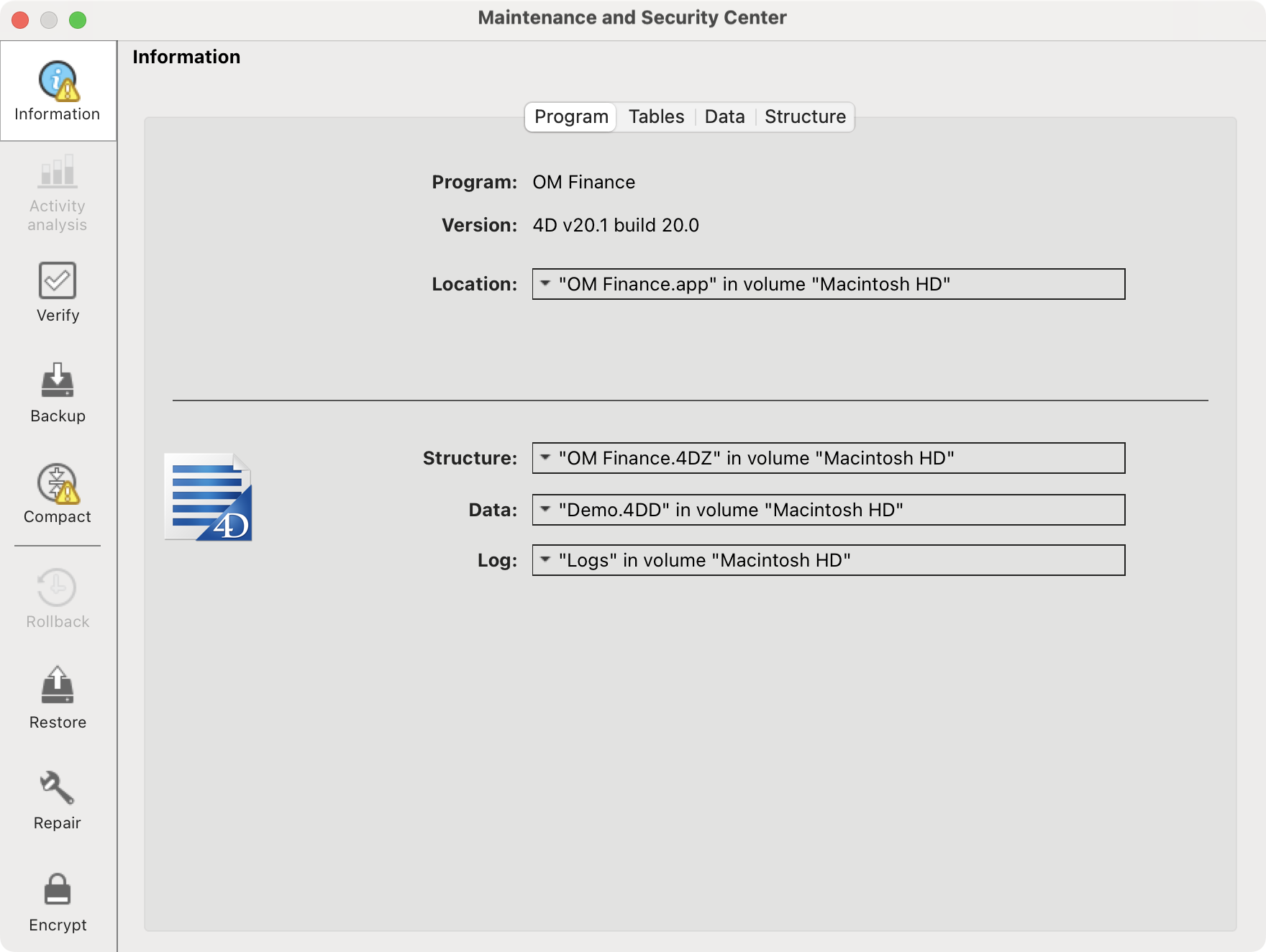
We recommend that you first check that your data file is not damaged. Click on the Verify tab in the left sidebar, then on the magnifying glass icon in the top left corner. If any anomalies are found, click on the Open log file button for more information.
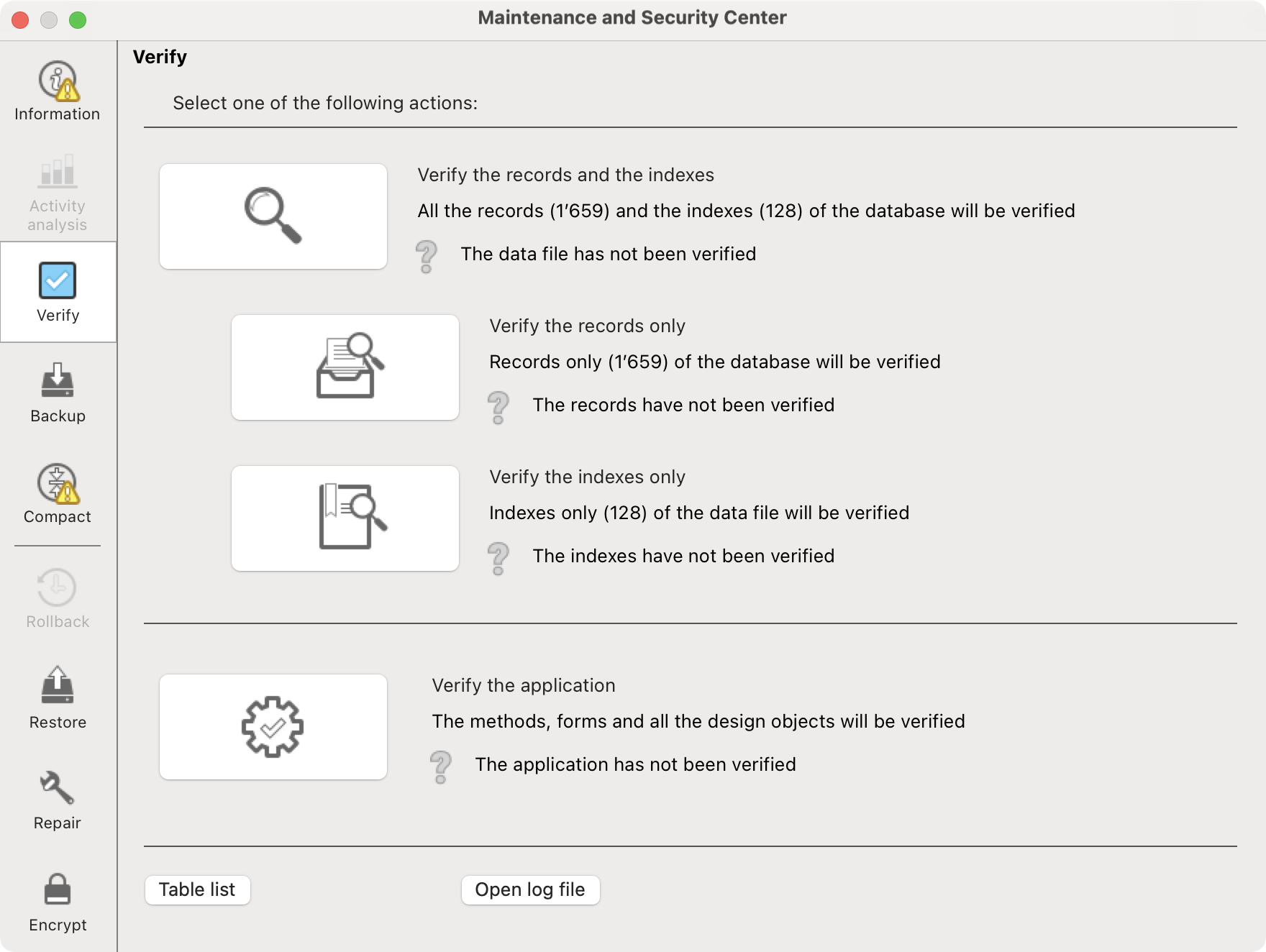
In the left sidebar, click on the Compact tab. At the top of the window, the program displays the data occupancy rate in the file. The higher the rate, the better the data occupancy. The program tells you whether compaction is recommended or unnecessary.
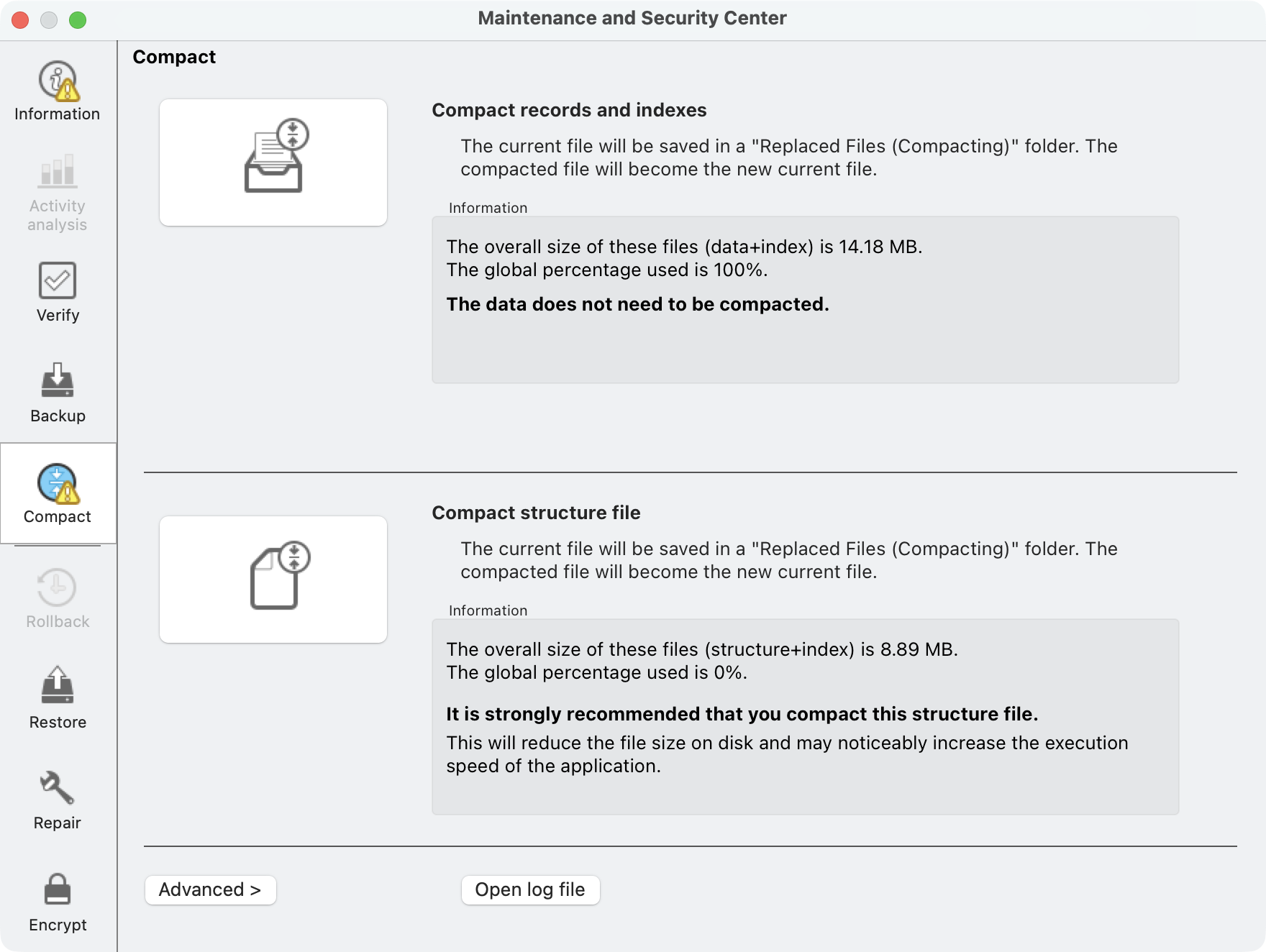
The Advanced> button provides additional options for compression, such as choosing the data file to compress and the location of the backup folder for the original files.
If you decide to compact the data, click on the button at the top left. The operation will begin and take from a few seconds to several minutes, depending on the size of the data file.
The original uncompressed file is placed in a folder named Replaced files (compacting) followed by the date and time of the operation. The compressed copy is saved in place of the original file and has the same name. Thus, the next time the program is started, it automatically opens the compressed copy.
The Open log file button provides access to a report on the compaction.
Once compacting is over, exit and restart the program.
Compacting with the server version
Compacting is performed from the administration window of the Server application. If this application is running in Service mode under Windows, stop the service and then start the application manually via Windows Explorer or the Start menu.
In the administration window, click the Maintenance tab.
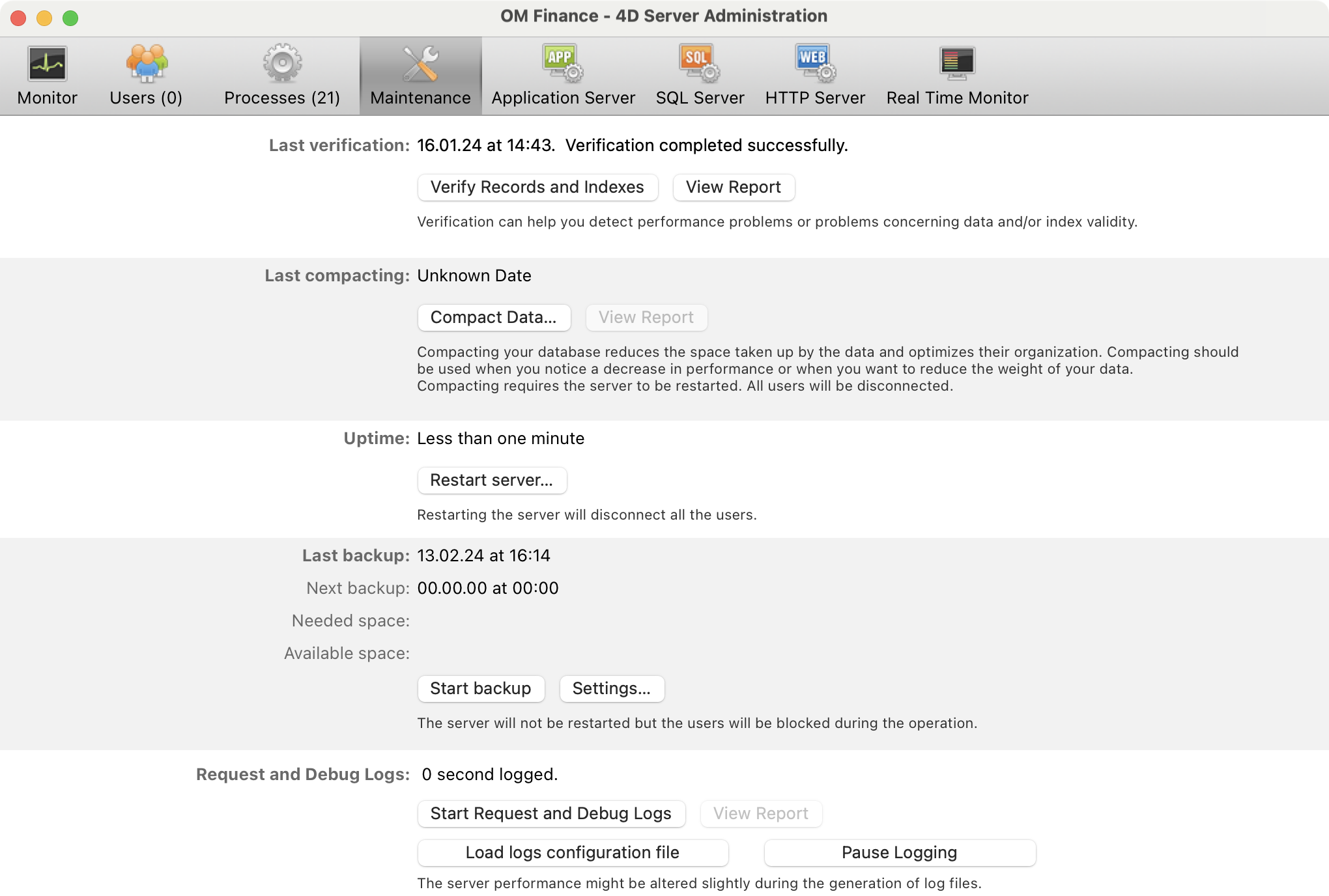
We recommend that you first check that your file is not damaged: to do this, click on the Verify records and indexes button and if any anomalies are detected, click on the View report button for more information.
Then click on the Compact Data… button: the program displays the same dialog box as when you exit the program. This is because compacting involves restarting the program in Maintenance mode, requiring all users to log out of the server.
The operation will begin and take from a few seconds to several minutes, depending on the size of the data file.
The original uncompressed file is placed in a folder named Replaced files (compacting) followed by the date and time of the operation. The compressed copy is saved in place of the original file and has the same name. Thus, the next time the program is started, it automatically opens the compressed copy.
The View report button provides access to a report on the compaction.
 Français
 Deutsch
 Italiano