Secondary Addresses
An Address record may be linked to other Address records, which can be of various types: Shipping Address, Billing Address, Contact Person, Branch, etc.
The relationship between an Address record and secondary addresses is managed on the Address tab of the Address record. A scrollable list contains one row for each linked secondary address.
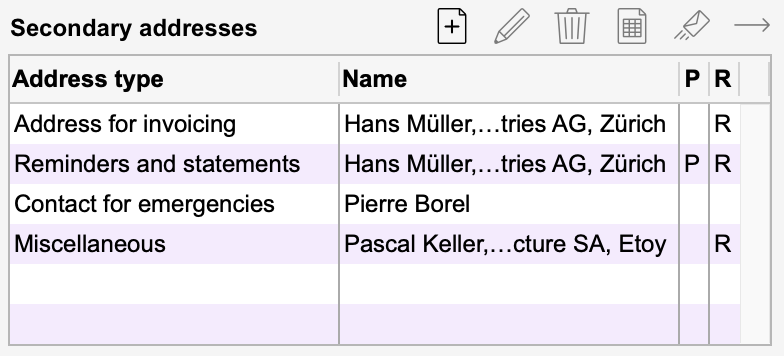
Above this area, various buttons let you:
 |
Add a new secondary address |
 |
Edit the selected secondary address |
 |
Delete the selected secondary address |
 |
Print a label for the selected secondary address |
 |
Create a new message in your mail application and fill up the To: field |
 |
Display in a new window the selected secondary address |
Fields in the secondary addresses
Most of the fields in the secondary address records are the same as those in the primary address record. Some specific features are described below:
| Field | Remark |
| Adress Type |
Select the desired type from this drop-down menu. The program uses the types “Shipping Address,” “Billing Address,” “Reminder and Statement Address,” “Quote Address,” and “Order Address” to generate the corresponding documents. To create new types of secondary addresses, open the Address file Options from the Action menu. |
| Code |
It is not necessary to assign a code to a secondary address. However, you can easily reference an existing address record by entering its code; this makes the other fields of the secondary address read-only (with the exception of the Notes field): in fact, the data displayed will then be that of the record in question. |
| Priority |
If there are multiple secondary addresses of the same type, you can designate one and only one as the “Priority” address; simply check this box. For example, if you have defined multiple shipping addresses, the program will use the one you designated as the priority address by default when you create a delivery note. |
| Common coordinates |
This checkbox automatically aligns the mailing addresses of the “child” records with those of the “parent” records. |
| Number |
Each new secondary address is assigned a sequential number by the program. This number cannot be changed. |
| Notes | Please see the Code field. |
Upper records, subrecords
You can link certain address records to each other so that they share the same data in the address-related fields. For example, you can have an Address record for a company and as many Address records as you have for contacts within that company. The link between these records is established via the Upper Record field, which appears on the first page of the Address record below the Photo field.
You can thus link several subrecords to an upper record. If this company changes its address, simply update the upper record, and this change will be automatically reflected in the subrecords. The fields affected by this link are as follows: Company, Company (continued), Street, ZIP Code, City, County, Country.
Create the link from the upper record
This link can be established from the upper record. In this record, you can store multiple secondary addresses of different types. Each of these can be defined as a subrecord, provided it has a code—that is, provided it is itself saved as an individual record in the Addresses file.
To do this, simply check the Common coordinates box. The contact information from the upper record is then copied to the secondary address and to the corresponding Address record. Additionally, the Code of the upper address is copied to the Upper Record field in the child record, which makes the contact information in the subrecord non-editable.
Create the link from one or several subrecords
After selecting the subrecord(s) to link to a upper record, click the Apply command, then select Upper Record as the destination. Enter the ID of the upper record to link to. Office Maker Business will automatically add the selected addresses as secondary addresses in the upper record. A drop-down menu allows you to specify the Address Type that will be assigned to these secondary addresses.
Check the Common coordinates option so that the address-related fields are copied to the subrecords and can only be modified from the upper record.
Note: The Apply command in the Action menu also allows you to Remove the link between upper and subrecords.
Using links between Addresses records
The Linked Records command in the Action menu lets you use the links you create between Address records.
 Français
 Deutsch
 Italiano