Importing a camt.054 payments file with EBICS
EBICS 3.0 is a European and Swiss standard that allows you to access your bank account without using the usual e-banking function.
This article describes how to retrieve the list of debit payments provided by your bank in Business.
Note: You must configure the software beforehand to access your bank accounts. This article describes the process.
To retrieve payments made by your customers to your bank account, go to the Debtor Payments file (accessible via the Sales menu), select the Import command, and choose the ISO EBICS Payments (camt.054) import format.
Some options for this import format can be saved, so you don't have to redefine them each time you import. To do this, click the Options button after selecting the import format.
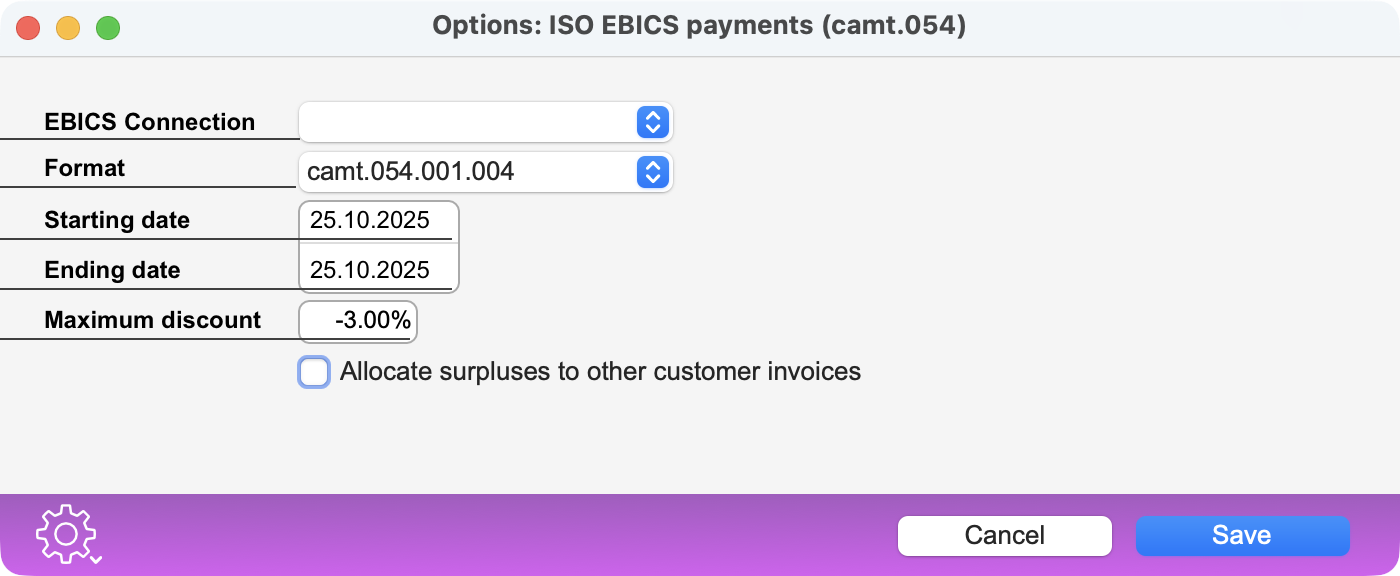 |
EBICS Connection : Select the desired configuration. If you have created several different configurations because you have multiple accounts, you can duplicate the import format so that each format corresponds to a different bank account. Format : Select one of the values offered: camt.054.001.004 or camt.054.001.008. Your bank will provide you with information on the supported format. Starting date and Ending date : Set the date range to import payments made only during the specified period. Maximum discount : Set the maximum discount allowed for the invoice to be considered paid. Allocate surpluses to other customer invoices : Check this box so that if a payment exceeds the amount of the invoices sent to the customer, the surplus is used to settle (partially or completely) other outstanding invoices. |
Once these options have been saved, proceed with the import. A dialog box will appear containing the list of payments received within the specified date range. This dialog box is described in this article .
 Français
 Deutsch
 Italiano