Importing donations collected with RaiseNow
The online platform RaiseNow allows non-governmental organizations to create donation campaigns. The data on the money raised can be imported into Business software as payments and invoices.
Campaign execution
Here’s how a campaign works:
On the RaiseNow platform, create a donation campaign and one or more “solutions”. A solution is a payment method displayed as a QR code for a specific financial platform: Twint, PayPal, etc.
Once the donations have been received, export the corresponding data into a CSV Standard file. This is the file that you will import into Business.
In the Business software, display the Payments file (via the Sales menu) and call up the Import command in the File menu. Select the RaiseNow Payments import format, then click on the Options button. An options dialog box will appear. Fill in the necessary fields (see below) and then validate the dialog box. After a window for choosing a file on the disk has been displayed, the program will then display another dialog box containing the transactions found in the CSV file. Check the data and validate the dialog box if everything is correct. Business will then create the Payment records and the corresponding invoices and possibly Address records for donors unknown in the database.
The Options dialog box
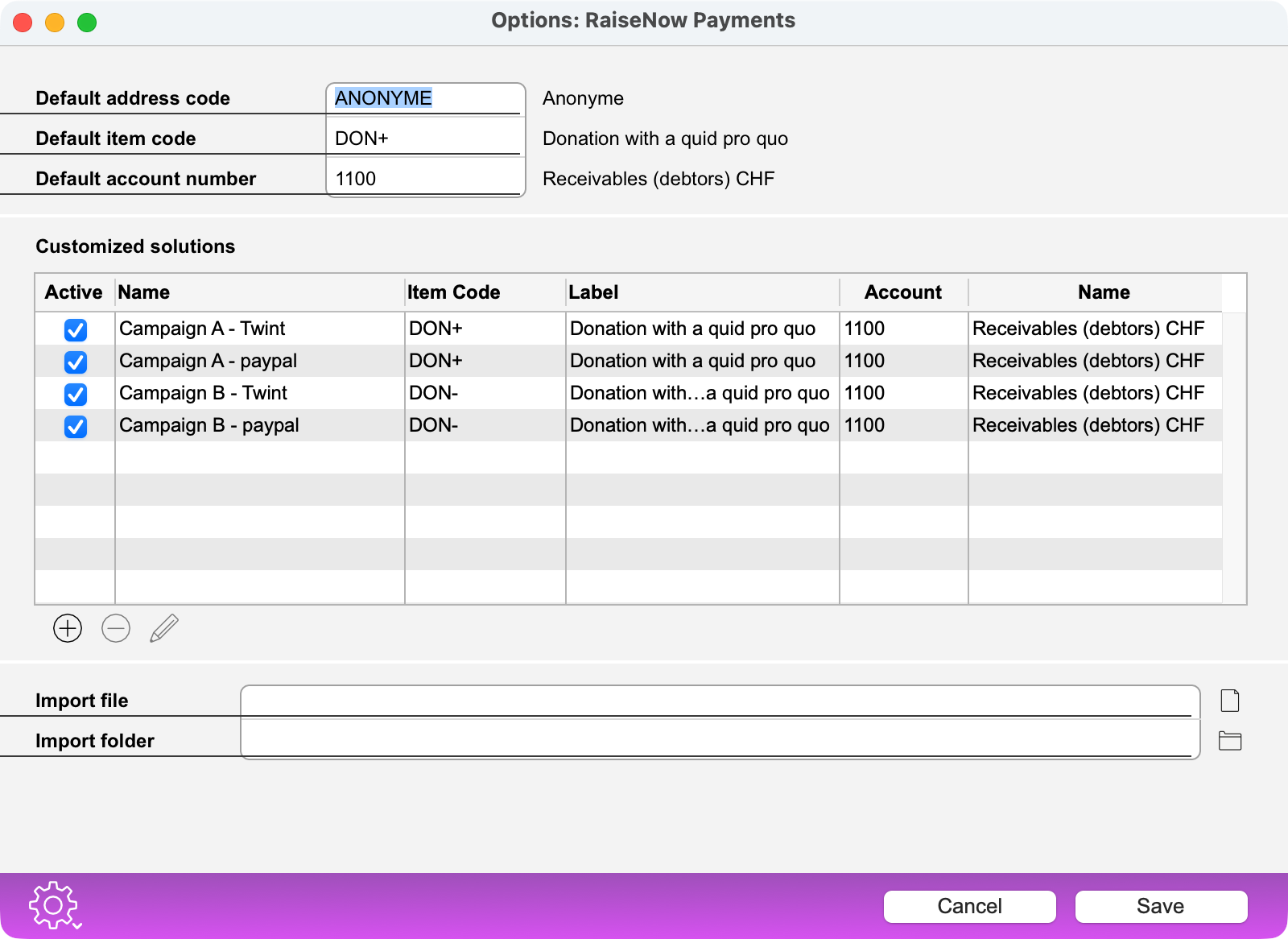
This dialog contains the following elements:
| Fields | Explanation |
| Default address code | In this field, define the address code that the program should add to the imported transaction if it does not contain any donor identification data. |
| Default item code | In this field, define the item code that the program should add to the imported transaction if the transaction does not contain any data that links the transaction to a solution. |
| Default account number | In this field, define the item code that the program should add to the imported transaction if the transaction does not contain any data that links the transaction to a solution. |
| Customized solutions | |
| Active | Check this box if the import contains donations made with this solution. |
| Name | Name of the solution that must exactly match the name defined on the RaiseNow platform. As a precaution, copy and paste these names between RaiseNow and Business. |
| Item code | Define the item code to use (type the @ character and press the Tab key to get all existing item codes). |
| Label | The label of the selected item code. |
| Account | Define the chart of accounts account to use (type @ and press the Tab key to get all existing accounts). |
| Name | The label of the selected account |
| Import File/Folder | Optionally specify the path to the file or folder containing the files to import. |
Processing of imported data
Donor Identification
During the import, the program attempts to link each transaction to an address record using the donor’s first name, last name and postal code. If this information is missing, the program applies the default address code defined in the import format options. If no default address has been specified, the payment is not imported but will appear in the import log. If the donor’s contact information is present in the transaction but does not match any known address in the database, the program creates a new address record.
Related items and VAT
Each imported transaction must be linked to an existing item in the database, as the creation of a payment record also involves the creation of an invoice.
Define the item code to be assigned to the transaction in the import format options.
Note: the item is linked to a VAT rate. If the donation is linked to a counter-performance (e.g. a fundraising dinner, a sponsorship mention, access to premises, etc.), it is subject to VAT and the item must contain a VAT rate greater than 0%. Otherwise, the item must contain a VAT rate of 0% and the “Donations” box must be checked.
Covering the fees
Some solutions, such as the “TWINT Donation” solution, offer a checkbox that allows the donor to cover the fees or not. If you want to cover the fees, disable this option when creating a custom solution in RaiseNow. The software handles the transaction fees as follows:
- If the donor pays the fees, the program records the full donation amount, without a discount (simple settlement).
- If the donor waives the fees or you disable the option to cover fees in the solution (under Custom Solution Builder > Cover fees), the program imports the donation with a discount for the fees. The donor’s balance is still 100% of the total donation amount, but the payment record will show that part of the payment was discounted.
Ignored Payments
Transactions with the status “Failed” (payment failed) are not imported. Also, if a donor chooses not to provide their name, please set a default address record to use for these anonymous donations. If no address has been configured in the import options, then the payment will be ignored. The same applies to payment method configuration.
Note that you can re-import the same file after you have completed the import options. Only payments that were previously ignored due to missing default values will be imported. Transactions that have already been imported will not be created again.
 Français
 Deutsch
 Italiano