Associated Items
This possibility is different from the one of creating Bundles. When you define a Bundle, you actually create a new item, which will appear in the parts list as a single line, without showing the components.
On the contrary, when you associate an (or several) item(s) to an item that we will call the main item, all the associated items appear in the parts list, and can then be managed separately.
Let’s take the example of a printer, which you normally sell with ink cartridges and cables, each of these products being the subject of a record in the Items file. The printer will of course be the main item, to which we will associate the ink cartridges and the cables.
Associating Items
In the main item record (the printer), after clicking on the Associated Items tab, we can indicate which items are associated with it.
Each associated item appears as a line in the scrolling area. The data for each line must be entered in the upper part, under the tabs. To associate an item, simply type its Item Code, which will display its Label.
Calculation formula for Quantity
Below the Label, you can then indicate a formula that will determine the Quantity of the associated item. Most often, this quantity will be directly dependent on the quantity of the main item. This is the case in our example.
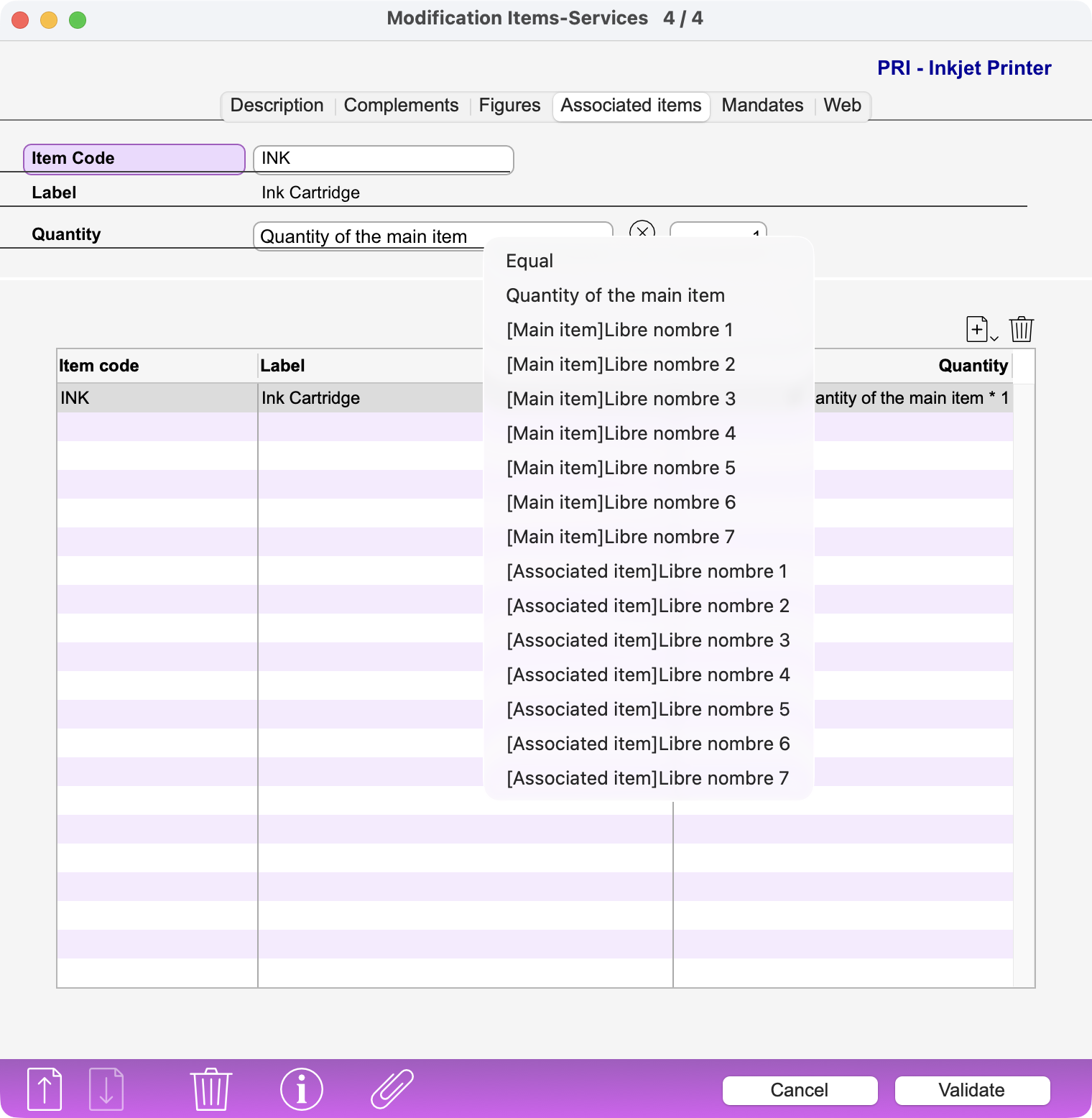
Clicking the = button brings up a local menu, in which you select Quantity of the main item. All that remains is to select an operator and a value. Our printer requires four cartridges. Simply complete the formula accordingly:
Quantity : Quantity of the main item X 4
Adding and deleting lines
Use the Enter key or the Insert button to add lines of associated items. The Delete button breaks the association but does not, of course, delete the Item-Service record corresponding to the associated item.
Comments
It is possible to create comment lines: just do not enter an Item Code and enter the comment in the Label field.
Sorting lines
The lines can be sorted by clicking on the column headers. This sorting also determines the order in which the associated items appear when the main item is inserted into the debtor documents.
It is also possible to move a line by dragging it up or down.
Constraints
An item cannot be associated with itself.
It is not possible to mention a main item in the list of associated items, i.e. an item in the record of which a list of associated items has already been mentioned. In other words, there are no “cascading” associations.
Entry in documents
When you enter the Item Code of a main item in a document (Offer, Confirmation, Delivery Note, Invoice, Credit Note), the associated items are automatically inserted after it, in the order in which they appear in the main item’s record.
The quantity of each associated item is adjusted according to the formula defined in the main item’s record. As long as the document has not been validated, the items remain linked to each other. If the quantity of the main item is changed, the quantities of the associated items are recalculated accordingly.
It is also possible to change the quantity of an associated item or to delete it, but this will not affect the other items.
Note: as soon as the document is validated, the items are no longer linked and each one becomes independent.
 Français
 Deutsch
 Italiano